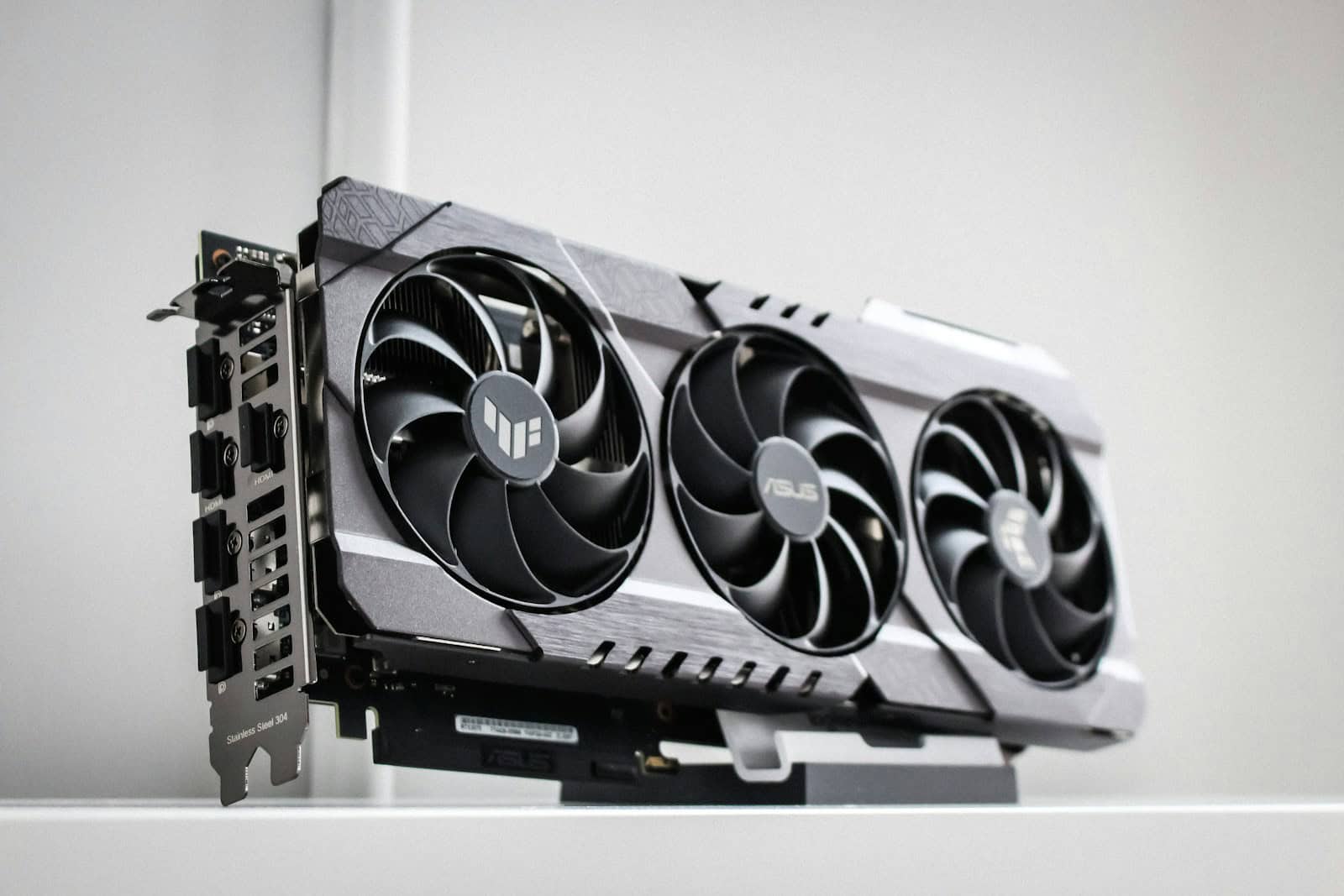
Keeping your graphics card (GPU) clean is essential for maintaining performance, lowering temperatures, and extending its lifespan. Dust buildup can restrict airflow, cause overheating, and lead to louder fans or thermal throttling. Fortunately, cleaning a GPU is a straightforward process if done carefully.
This guide walks you through how to clean a graphics card safely, whether it’s installed in a desktop PC or removed for a deeper clean.
Why Cleaning Your Graphics Card Matters
Over time, dust and debris collect on:
- Cooling fans
- Heatsink fins
- PCB (printed circuit board)
This buildup:
- Increases temperatures
- Reduces boost clocks
- Makes fans work harder and louder
- Can shorten component lifespan
Cleaning your GPU every 6–12 months (or more often in dusty environments) helps keep it running like new.
What You’ll Need
Before starting, gather these tools:
- Compressed air (canned or electric air blower)
- Soft anti-static brush or clean paintbrush
- Microfiber cloth
- Isopropyl alcohol (90% or higher) – optional, for deeper cleaning
- Phillips screwdriver – only if removing the GPU or shroud
- Anti-static wrist strap (recommended)
⚠️ Avoid: Vacuums, paper towels, or excessive liquids.
Step 1: Power Down and Prepare
- Shut down your PC completely.
- Turn off the power supply and unplug the power cable.
- Press the power button for a few seconds to discharge residual electricity.
- Move the PC to a clean, well-lit area.
For light cleaning, you can leave the GPU installed. For a deep clean, remove it.
Step 2: Remove the Graphics Card (Optional but Recommended)
- Disconnect the PCIe power cables.
- Unscrew the GPU from the case bracket.
- Press the PCIe slot release latch.
- Carefully pull the card straight out.
Place the GPU on a non-conductive surface, such as its original box or an anti-static mat.
Step 3: Clean Dust with Compressed Air
- Hold the fans in place with a finger or plastic tool to prevent overspinning.
- Use short bursts of compressed air to blow dust out of:
- Fans
- Heatsink fins
- PCB surface
✅ Always spray air at an angle and keep the can upright.
Step 4: Brush Away Stubborn Debris
For dust that won’t budge:
- Gently use a soft brush to loosen it.
- Follow up with compressed air to remove the debris.
Be gentle around small components and connectors.
Step 5: Clean the Fans and Shroud
- Wipe fan blades and the GPU shroud with a microfiber cloth.
- For sticky residue, lightly dampen the cloth with isopropyl alcohol.
- Allow everything to dry completely before reinstalling.
Step 6: Optional Deep Cleaning (Advanced Users)
If you’re comfortable disassembling the GPU:
- Remove the shroud and heatsink
- Replace old thermal paste on the GPU die
- Replace worn thermal pads if necessary
⚠️ This step is optional and may void your warranty. Only attempt it if you know what you’re doing.
Step 7: Reinstall the Graphics Card
- Insert the GPU firmly back into the PCIe slot.
- Secure it with screws.
- Reconnect PCIe power cables.
- Close the case and plug everything back in.
Power on your PC and confirm the fans spin normally.
After Cleaning: Check Temperatures
Use monitoring tools like:
- HWMonitor
- GPU-Z
- MSI Afterburner
You should notice:
- Lower idle and load temperatures
- Quieter fan operation
- More consistent performance
How Often Should You Clean Your GPU?
- Every 6–12 months for most users
- Every 3–6 months if you:
- Have pets
- Smoke near your PC
- Live in a dusty environment
Adding case dust filters and maintaining positive airflow can reduce how often cleaning is needed.
Final Tips and Warnings
✅ Do:
- Ground yourself before touching components
- Use gentle air pressure
- Take your time
❌ Don’t:
- Use water or household cleaners
- Spin fans with compressed air
- Touch electrical contacts unnecessarily
Conclusion
Cleaning your graphics card is one of the simplest and most effective ways to improve PC performance and reliability. With the right tools and a careful approach, you can keep your GPU cool, quiet, and running at its best for years to come.