Amazon Kindle Fire tablets (now called Amazon Fire tablets) are affordable, versatile devices designed for reading, streaming, browsing, and light productivity. While they’re generally easy to use, you may occasionally run into performance issues, app problems, or settings confusion. This guide shares practical tips to get the most out of your Fire tablet and step-by-step troubleshooting advice to fix common problems.
Essential Tips for Using a Kindle Fire Tablet
1. Customize the Home Screen
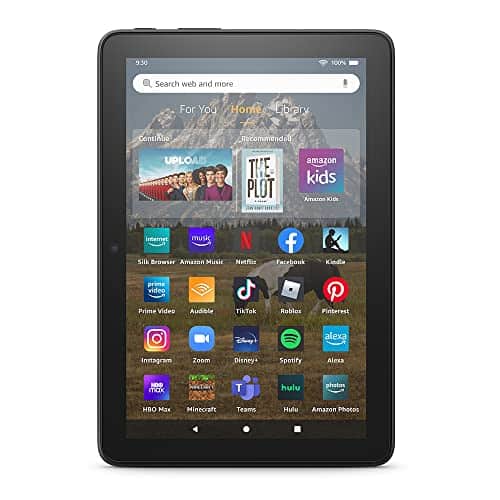
Fire tablets use a content-focused home screen.
- Swipe left or right to switch between For You, Home, and Library
- Pin frequently used apps to Home for faster access
- Remove unwanted app suggestions by long-pressing them
2. Manage Storage Space
Limited storage is a common issue.
- Go to Settings > Storage
- Delete unused apps, videos, or downloads
- Clear app cache under Apps & Notifications
- Move photos and videos to Amazon Photos (free for Prime members)
3. Extend Battery Life
To make your battery last longer:
- Lower screen brightness
- Turn off Bluetooth and Wi‑Fi when not in use
- Enable Battery Saver in Settings
- Close background apps you’re not using
4. Use Parental Controls
Fire tablets are family-friendly.
- Go to Settings > Parental Controls
- Create a PIN
- Set limits for screen time, apps, and web access
- Use Amazon Kids for child-safe profiles
5. Keep Your Tablet Updated
Software updates improve performance and security.
- Go to Settings > Device Options > System Updates
- Install updates when available
- Restart your tablet after updating
Common Kindle Fire Tablet Problems and How to Fix Them
Tablet Running Slow
Possible fixes:
- Restart the tablet
- Close unused apps
- Clear app cache
- Free up storage space
- Check for system updates
Apps Won’t Open or Keep Crashing
Try this:
- Go to Settings > Apps & Notifications
- Select the problematic app
- Tap Force Stop
- Tap Clear Cache
- Reopen the app
If the issue continues, uninstall and reinstall the app.
Wi‑Fi Connection Issues
Troubleshooting steps:
- Toggle Wi‑Fi off and on
- Restart your router
- Forget and reconnect to the network
- Move closer to the router
- Make sure your tablet software is up to date
Tablet Won’t Turn On
What to do:
- Charge the tablet for at least 30 minutes
- Use the original charger and cable
- Hold the Power button for 20–40 seconds
- Try a different power outlet or cable
Kindle Fire Frozen or Unresponsive
Fix:
- Press and hold the Power button for 40 seconds
- Wait a few seconds, then turn it back on
This performs a forced restart without deleting data.
Amazon Appstore Not Downloading Apps
Solutions:
- Check your internet connection
- Restart the tablet
- Clear the Amazon Appstore cache
- Make sure you’re signed in to your Amazon account
Advanced Troubleshooting
Reset the Kindle Fire Tablet (Factory Reset)
Use this only if other fixes fail.
- Go to Settings > Device Options
- Tap Reset to Factory Defaults
- Confirm the reset
Warning: This erases all data on the tablet.
Check Amazon Account and Content Sync
If books or apps are missing:
- Go to Settings > Account
- Sync your Amazon account
- Confirm the content is linked to your account
Helpful Maintenance Tips
- Restart your tablet once a week
- Keep at least 2–3 GB of free storage
- Avoid installing too many background-heavy apps
- Use a protective case to prevent hardware damage
Final Thoughts
Amazon Kindle Fire tablets are reliable and easy to use, but occasional issues can arise—especially with storage, performance, or apps. By following these tips and troubleshooting steps, you can keep your Fire tablet running smoothly and fix most problems without professional help.
If you’re facing a specific issue with your Kindle Fire model, feel free to ask for tailored guidance.