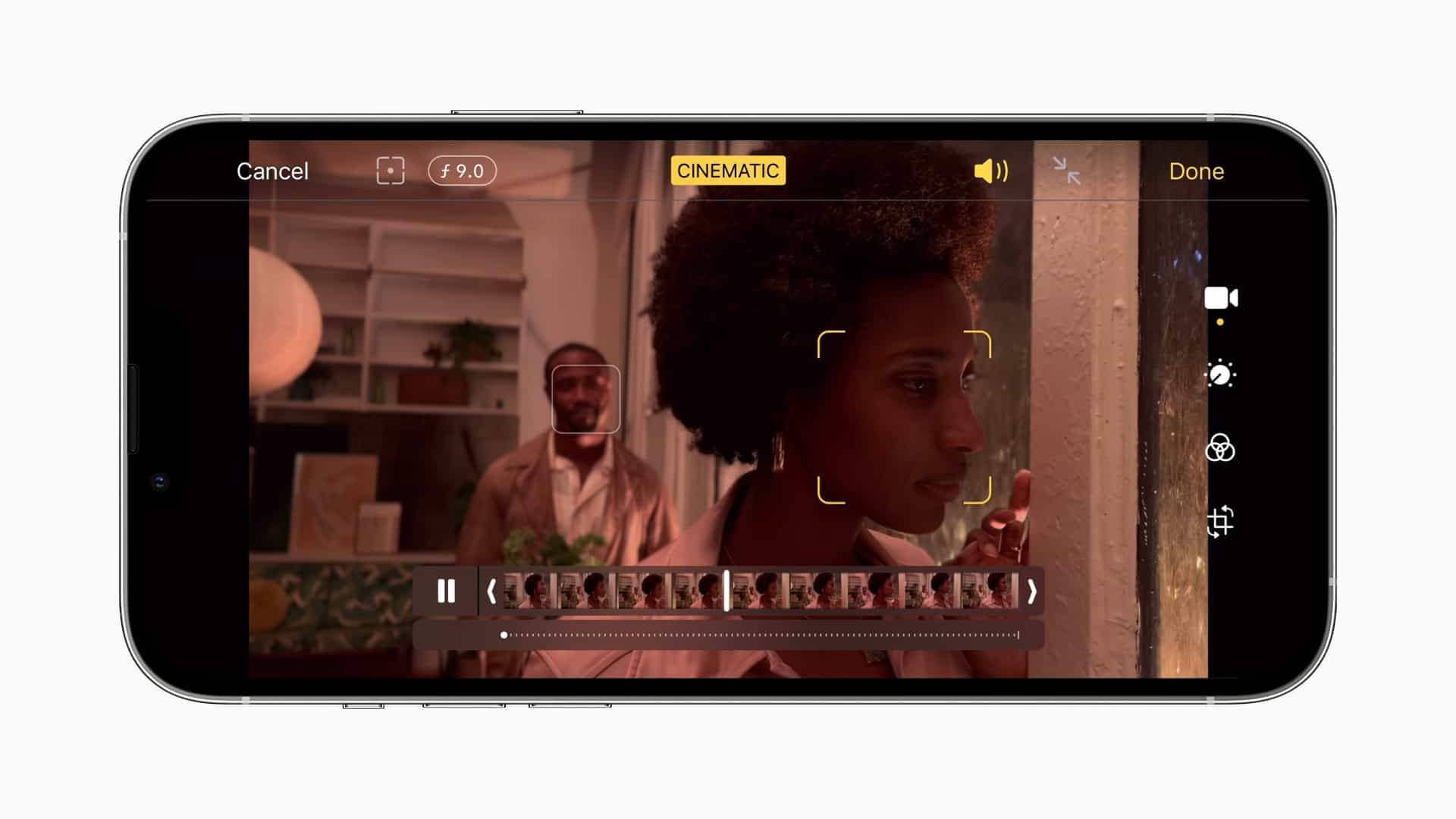
Cinematic mode on the iPhone 13 brings professional-looking video to your fingertips. This feature lets you create depth-of-field effects and smooth focus transitions in your videos. Cinematic mode automatically shifts focus between subjects, creating a Hollywood-style look for your smartphone footage.
You can easily capture dynamic videos with Cinematic mode. It works by intelligently detecting faces and objects in the frame. The iPhone then applies a blur effect to the background, keeping your main subject in sharp focus. This creates a sense of depth and draws attention to the important elements in your video.
Cinematic mode offers flexibility in post-production too. You can adjust the focus points and depth effect after recording. This gives you creative control over your videos, allowing you to fine-tune the look to match your vision.
| Feature | Description |
|---|---|
| Automatic focus | Shifts focus between subjects |
| Depth effect | Blurs background for cinematic look |
| Post-production editing | Adjust focus and depth after recording |
What Does Cinematic Mode Do on iPhone?
Cinematic Mode is a camera feature on iPhones that lets you record videos with a professional‑looking shallow depth of field, similar to what you see in movies. It keeps your subject in sharp focus while artistically blurring the background—and it can even shift focus automatically as the scene changes.
Introduced with iPhone 13, Cinematic Mode is designed to make high‑quality video easy for everyone, no filmmaking experience required.
How Cinematic Mode Works
Cinematic Mode uses a combination of:
- Advanced camera hardware
- Depth‑sensing technology
- Machine learning
Together, these allow the iPhone to:
- Detect people, faces, and objects
- Automatically focus on the most important subject
- Smoothly shift focus when a new subject enters the frame
- Add a natural-looking background blur (bokeh)
This effect is often called a “rack focus” in professional filmmaking.
Key Features of Cinematic Mode
1. Background Blur (Depth of Field)
The main feature is background blur that helps your subject stand out. Unlike standard video, Cinematic Mode creates separation between the subject and the background.
2. Automatic Focus Shifts
If someone turns their head or a new person enters the frame, the camera can automatically shift focus to the new subject.
3. Manual Focus Control After Recording
One of Cinematic Mode’s most powerful features is that you can:
- Change focus after recording the video
- Tap on a different subject to refocus
- Adjust the blur intensity in the Photos app
4. Subject Recognition
Cinematic Mode recognizes:
- Faces
- Multiple people
- Objects in the foreground
This allows for intelligent and smooth focus transitions.
Video Quality and Resolution
Depending on your iPhone model:
- Cinematic Mode records in 1080p or 4K
- Up to 30 frames per second
- Supports HDR on newer models
Apple continues to improve quality with each new iPhone generation.
Which iPhones Support Cinematic Mode?
Cinematic Mode is available on:
- iPhone 13 series and newer
- iPhone 14 series
- iPhone 15 series
(Newer models offer higher resolution and better performance.)
How to Use Cinematic Mode
- Open the Camera app
- Swipe to Cinematic
- Frame your shot
- Tap to set focus (or let the iPhone do it automatically)
- Press Record
To edit focus later:
- Open the video in the Photos app
- Tap Edit
- Tap on different subjects to change focus
- Adjust blur using the depth slider
When Should You Use Cinematic Mode?
Cinematic Mode is ideal for:
- Interviews
- Vlogs
- Short films
- Family videos
- Social media content
It works best when there’s clear separation between the subject and the background.
Limitations of Cinematic Mode
While powerful, it has a few limitations:
- Not ideal for fast action or sports
- Requires good lighting for best results
- Background blur is software‑based, so extreme cases may look less natural
Cinematic Mode vs Portrait Video
Cinematic Mode is more advanced than standard portrait-style video because:
- Focus can change dynamically
- Edits can be made after recording
- It offers smoother, film‑style transitions
Final Thoughts
Cinematic Mode turns your iPhone into a pocket filmmaking tool. It simplifies complex camera techniques like depth of field and focus pulling, making professional‑looking video accessible to everyone.
If you want your videos to look more polished and cinematic—with minimal effort—Cinematic Mode is one of the iPhone’s most impressive features.
Understanding Cinematic Mode
Cinematic Mode brings professional filmmaking techniques to iPhone videos. It creates visually appealing footage with depth and focus control.
The Basics of Cinematic Mode
Cinematic Mode is a video recording feature on newer iPhones. It adds a shallow depth of field to your videos. This effect blurs the background while keeping the subject in focus.
You can access Cinematic Mode through the Camera app. It’s located next to the regular Video mode. The default settings are 1080p resolution at 30 frames per second.
Cinematic Mode automatically detects subjects in the frame. It can shift focus between multiple people or objects. This creates a professional look similar to movies.
The Technology Behind Cinematic Mode
Cinematic Mode uses advanced algorithms and the A15 Bionic chip. These work together to create the depth-of-field effect in real-time.
The system uses machine learning to identify faces and objects. It then applies a bokeh effect to blur the background. This happens instantly as you record.
You can adjust the depth of field during or after recording. This gives you more control over the final look of your video.
| Feature | Description |
|---|---|
| Resolution | 1080p HD |
| Frame Rate | 30 fps |
| HDR | Dolby Vision support |
| Focus Control | Real-time and post-capture |
Comparison to Traditional Video Modes
Cinematic Mode differs from standard video recording in several ways. Regular video modes capture everything in focus. Cinematic Mode creates a more dynamic look.
Traditional video modes offer higher resolution options like 4K. They also allow for 60 fps recording. Cinematic Mode is currently limited to 1080p at 30 fps.
The main advantage of Cinematic Mode is its ability to create professional-looking videos easily. It simulates the “pulling focus” technique used in filmmaking. This draws the viewer’s attention to specific subjects in the frame.
How to Use Cinematic Mode on iPhone
Cinematic mode offers a powerful way to capture professional-looking videos on your iPhone. This feature allows you to create depth effects and adjust focus points for cinema-style results.
Accessing Cinematic Mode
To use Cinematic mode, open the Camera app on your iPhone. Swipe through the camera modes at the bottom of the screen until you reach “Cinematic.” This option is available on iPhone 13 models and newer.
Ensure your iPhone is updated to the latest iOS version for the best performance. Once in Cinematic mode, you’ll see a preview of the depth effect on your screen. Hold your iPhone steady to get the best results.
You can switch between the wide and telephoto lenses by tapping the zoom options (1x, 2x, 3x) if your iPhone model supports them.
Setting Focus Points
Cinematic mode automatically detects and tracks subjects in your frame. To manually set a focus point:
- Tap on the subject you want to focus on.
- A yellow square will appear around the selected area.
- The camera will track this subject as it moves.
You can change focus during recording by tapping on a new subject. The focus will smoothly shift, creating a professional-looking rack focus effect.
After recording, you can edit focus points in the Photos app. This allows you to refine your video’s focus changes.
Adjusting Depth-of-Field
The depth-of-field effect is key to Cinematic mode’s appeal. To adjust it:
- Look for the “f” icon in the top right corner of the screen.
- Tap the icon to reveal a slider.
- Drag the slider left for a shallower depth of field (more background blur).
- Drag right for a deeper depth of field (less background blur).
| Depth-of-Field Setting | Effect |
|---|---|
| f/2.8 (left) | Maximum background blur |
| f/5.6 (middle) | Moderate background blur |
| f/16 (right) | Minimum background blur |
You can adjust this setting before or during recording. Experiment with different levels to find the look you want for your video.
Remember, good lighting enhances the depth effect. Try to shoot in well-lit areas for the best results.
Editing in Cinematic Mode
Cinematic mode offers powerful editing capabilities after capturing your video. You can refine focus points and adjust depth-of-field effects to enhance your footage.
Editing Tools in Photos App
The Photos app provides a range of tools for editing Cinematic mode videos. You can adjust focus by tapping on different subjects in the frame. The app allows you to change the f-stop value, altering the depth-of-field effect.
You can also trim the video length and apply color adjustments. These include brightness, contrast, and saturation controls. The Photos app offers filters to quickly change the overall look of your footage.
To access these tools, open your Cinematic video in the Photos app and tap “Edit”. You’ll see a timeline with focus points marked. Tap any point to refine the focus or add new focus transitions.
Depth Map and Focus Transitions
Cinematic mode creates a depth map of the scene as you record. This map allows for post-capture focus adjustments. You can change focus points at any time during playback.
The depth map enables smooth focus transitions between subjects. You can add, remove, or adjust these transitions in editing. Tap on a subject to set a new focus point. The app will automatically create a transition to this new focus.
You can fine-tune transition timing by dragging focus points on the timeline. This gives you precise control over when focus shifts occur in your video.
Exporting Edit Cinematic Mode Videos
After editing, you can export your Cinematic mode video in various formats. The Photos app allows you to save the edited version alongside the original. This preserves your edits while keeping the original footage intact.
You can share your edited video directly from the Photos app to social media or messaging apps. For more advanced editing, you can export to third-party video editing apps that support Cinematic mode.
When exporting, you have options for video quality and format. Higher quality settings will result in larger file sizes but preserve more detail.
| Export Option | File Size | Quality | Compatibility |
|---|---|---|---|
| High | Large | Best | Limited |
| Medium | Moderate | Good | Wide |
| Low | Small | Fair | Universal |
Choose the export settings that best suit your needs and intended use for the video.
Advanced Cinematic Mode Features
Cinematic Mode offers sophisticated capabilities that elevate iPhone videography. These features enhance subject tracking, integrate with professional workflows, and pave the way for future camera upgrades.
Subject Tracking and AF Lock
The A15 Bionic chip powers Cinematic Mode’s advanced subject tracking. This feature uses machine learning to identify and follow subjects in your frame. You can tap to select a primary subject, and the iPhone will maintain focus as they move.
AF tracking lock allows you to fix focus on a specific point. This is useful when you want to keep a stationary subject in focus while other elements move in the foreground or background. To engage AF lock:
- Tap and hold on your desired focus point
- Wait for the yellow AF/AE lock indicator to appear
- Release your finger
The focus will now stay locked on that point until you tap elsewhere in the frame.
Using Cinematic Mode with Professional Workflow
Cinematic Mode integrates seamlessly with professional video editing software. You can capture footage in ProRes format on Pro series iPhones for higher quality and more flexibility in post-production.
To maximize compatibility:
- Shoot in 4K resolution when possible
- Use manual exposure controls for consistent lighting
- Export your footage as ProRes files
Many editing programs now support Cinematic Mode’s depth data. This allows you to adjust focus points and depth-of-field effects after shooting.
Future Camera Upgrades and Integrations
Apple continues to improve Cinematic Mode with each iPhone release. The iPhone 14 Pro introduced upgrades like improved low-light performance and 4K/24fps recording in Cinematic Mode.
Expected future enhancements include:
- Better subject detection using LiDAR
- Expanded telephoto and ultra-wide camera support
- Improved AI-driven scene analysis
- Integration with augmented reality features
| Feature | Current | Future Potential |
|---|---|---|
| Max Resolution | 4K/30fps | 4K/60fps or 8K |
| Depth Control | Post-capture | Real-time adjustments |
| Subject Types | People, pets | Objects, vehicles |
These advancements will further blur the line between smartphone and professional filmmaking tools.
Frequently Asked Questions
Cinematic mode offers unique video recording capabilities on select iPhone models. Users can enhance their footage with depth-of-field effects and focus adjustments.
How is Cinematic mode utilized on the iPhone 13?
Cinematic mode on the iPhone 13 allows you to create videos with a shallow depth of field. You can access it through the Camera app by swiping to Cinematic mode.
The feature lets you adjust the depth of field using the Depth Control button. You can also switch between Wide and Telephoto lenses for different shot compositions.
What distinguishes Cinematic mode from the standard video recording settings?
Cinematic mode differs from standard video by adding dynamic focus control. It automatically shifts focus between subjects or lets you manually select focus points.
This mode mimics professional filmmaking techniques, creating more immersive videos. It also allows for post-recording focus adjustments, giving you greater creative control.
Which models of the iPhone support the Cinematic mode feature?
Cinematic mode is available on iPhone 13 and newer models. This includes the iPhone 13 mini, iPhone 13, iPhone 13 Pro, and iPhone 13 Pro Max.
Later models like the iPhone 14 series also support this feature. Older iPhone models do not have Cinematic mode capabilities.
On the iPhone 14, how does Cinematic mode enhance video recording?
The iPhone 14 builds on the Cinematic mode introduced in the iPhone 13. It offers improved subject detection and smoother focus transitions.
You can record Cinematic videos in 4K resolution at 24 fps on iPhone 14 models. This higher quality adds more detail and a more cinematic look to your footage.
When is the optimal scenario to use Cinematic mode on an iPhone?
Cinematic mode works best for scenes with multiple subjects at different distances. It’s ideal for interviews, product showcases, or capturing moving subjects.
Use it when you want to guide viewer attention between different elements in your video. It’s particularly effective for storytelling and creating professional-looking content.
Can you recommend optimal settings for using Cinematic mode on the iPhone?
Start with the default settings and adjust as needed. Use the 1x Wide lens for general shots and 3x Telephoto for close-ups on Pro models.
Experiment with manual focus by tapping on subjects. Adjust the f-stop (aperture) to control background blur intensity. Lower values create more blur, while higher values keep more in focus.