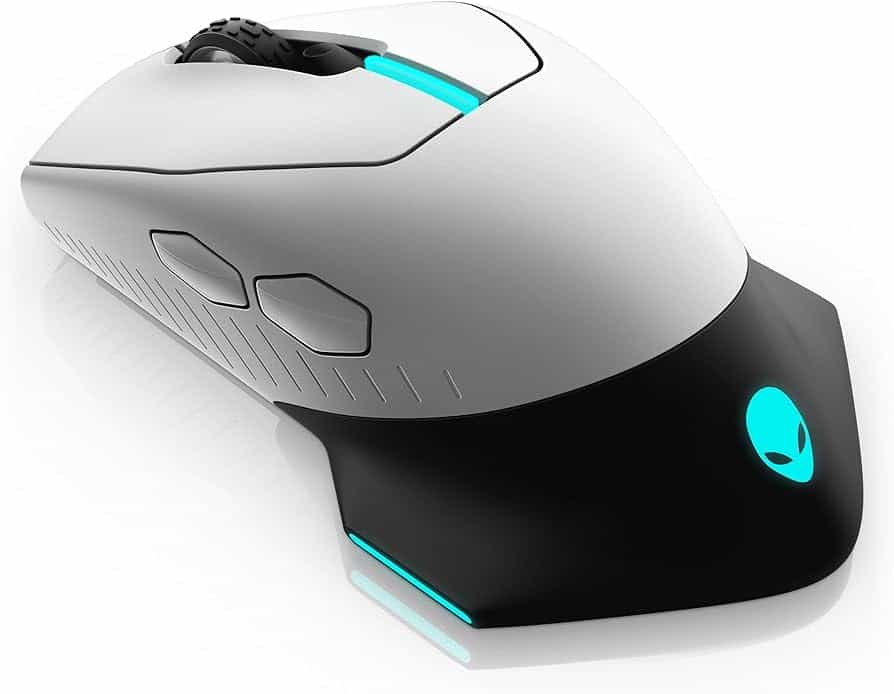
Alienware mice are known for their sleek designs, high DPI sensors, and integration with the Alienware ecosystem. However, like any high-performance peripheral, they can occasionally run into technical hiccups—ranging from connectivity drops to software glitches in the Alienware Command Center (AWCC).
If your cursor is stuttering, your buttons aren’t responding, or your RGB lighting has gone dark, this guide will help you get back into the game.
1. Connectivity Issues (Wired and Wireless)
Before diving into complex software fixes, start with the basics of how your mouse connects to your PC.
For Wired Mice:
- Swap USB Ports: Plug the mouse into a different USB port, preferably one directly on the motherboard (the back of the PC) rather than a USB hub or front-panel port.
- Inspect the Cable: Check for any kinks, frays, or tight bends in the braided cable that might indicate internal damage.
For Wireless Mice (AW610M, AW720M, etc.):
- Check the Dongle: Ensure the 2.4GHz USB receiver is plugged in securely. If you are using a desktop, use the included extender cable to place the dongle closer to your mousepad to reduce interference.
- Toggle the Switch: Ensure the switch on the bottom of the mouse is set to the correct mode (2.4GHz or Bluetooth).
- Wake it Up: Some Alienware mice enter a deep sleep mode to save battery. Click a button (rather than just moving it) to wake it up.
2. Software and Driver Fixes
The most common source of Alienware mouse problems is the Alienware Command Center (AWCC).
Update Alienware Command Center
If your mouse isn’t showing up in the software or the RGB isn’t syncing:
- Open AWCC and check for updates.
- If the mouse is missing, uninstall AWCC entirely, restart your computer, and download the latest version from the Dell Support website.
Update Firmware
Firmware is the internal software on the mouse itself.
- Connect your mouse via the USB cable (even if it’s a wireless model).
- Open AWCC or go to the Dell Support site and search for your specific model.
- Download and run the Firmware Update Utility. Do not unplug the mouse during this process.
3. Tracking and Cursor Problems
If your cursor is jumping, lagging, or moving on its own, the issue is likely physical or related to the sensor settings.
- Clean the Sensor: Use a can of compressed air to blow out any dust or hair from the sensor hole on the bottom. For stubborn dirt, use a Q-tip lightly dampened with isopropyl alcohol.
- Surface Calibration: Alienware sensors are optimized for mousepads. If you are using a glass or highly reflective surface, the sensor may struggle. Try a standard cloth mousepad.
- Adjust Polling Rate: If your CPU is under heavy load, a 1000Hz polling rate can sometimes cause stuttering. Try lowering it to 500Hz in the AWCC settings to see if performance stabilizes.
4. Button and Scroll Wheel Issues
Unresponsive Buttons or Double-Clicking
If your mouse is registering two clicks when you only pressed once, or if a button isn’t clicking at all:
- Check for Debris: Use compressed air around the edges of the buttons to clear out crumbs or dust.
- Reset Windows Mouse Settings: Go to Settings > Devices > Mouse > Additional Mouse Options. Ensure the “Double-click speed” is set to the middle notch.
Scroll Wheel Skipping
If the scroll wheel feels “mushy” or jumps up when you scroll down:
- This is often a hardware issue, but sometimes a firm “blow” of air into the wheel assembly can clear out dust interfering with the optical encoder.
5. Battery and Charging Issues (Wireless Models)
If your wireless Alienware mouse won’t hold a charge:
- Use the Original Cable: Some third-party USB-C cables have housings that are too thick to fit properly into the recessed port of Alienware mice.
- Check Charging Status: Look at the LED indicator. If it doesn’t pulse when plugged in, the battery may be completely depleted. Leave it plugged into a powered USB port for at least 30 minutes before trying to turn it on.
- Disable RGB: If the battery is draining too fast, turn off the AlienFX lighting in AWCC. RGB can reduce battery life by up to 50%.
6. How to Factory Reset an Alienware Mouse
If all else fails, a factory reset can clear out internal logic errors. While the method varies slightly by model, the general process for most Alienware mice (like the AW610M) is:
- Turn the mouse OFF.
- Hold down the Left Click, Right Click, and Scroll Wheel button simultaneously.
- While holding them, turn the mouse ON.
- The LEDs should flash, indicating the reset was successful.
When to Contact Support
If you have tried all the steps above and your mouse still has a “ghost” click, a dead sensor, or won’t power on, it may be a hardware failure. Alienware peripherals typically come with a 1-year or 2-year warranty.
Check your warranty status on the Dell Support page using the Service Tag found on the bottom of the mouse or the original packaging. If you are under warranty, Dell is usually very quick to send a replacement.
How to Charge Alienware Mouse
Charging your Alienware mouse is crucial for uninterrupted gaming sessions. To charge an Alienware mouse, simply connect the USB charging cable to the mouse and plug it into a USB port on your computer or a wall adapter. This method works for popular models like the Alienware 610M and AW620M.
The Alienware 610M and AW620M are versatile wireless gaming mice with rechargeable batteries. You can use them in wired mode while charging or wirelessly when unplugged. The Alienware Command Center lets you check the battery level. Just go to the FX tab and click on your mouse icon in the upper right corner to see the percentage.
| Feature | Alienware 610M | Alienware AW620M |
|---|---|---|
| Battery Life | Up to 350 hours | Up to 140 hours |
| Charging Method | USB cable | USB cable |
| Wireless Mode | 2.4 GHz | 2.4 GHz |
| Wired Mode | Yes | Yes |
Preparing for First Use
Before using your Alienware mouse, you need to take a few steps. These include checking compatibility, installing necessary software, and understanding your specific mouse model.
Checking Compatibility
Your Alienware mouse works best with Windows 10 or later. Check your computer’s operating system version:
- Press Windows key + I to open Settings
- Click on System
- Scroll down to About
- Look for “Windows specifications”
Make sure your USB ports are functioning. Try plugging in other devices to test them. If you have a wireless mouse, ensure your computer has Bluetooth capability or a free USB port for the dongle.
Dell’s support website offers detailed compatibility information for specific Alienware mouse models.
Installing Alienware Command Center
Alienware Command Center (AWCC) is essential for customizing your mouse settings. Here’s how to install it:
- Go to Dell’s support website
- Enter your mouse’s service tag or choose your model
- Download AWCC from the Drivers & Downloads section
- Run the installer and follow on-screen prompts
After installation, restart your computer. Open AWCC to check for updates. The software lets you adjust DPI, program buttons, and set up RGB lighting profiles.
Understanding Your Mouse Model
Alienware offers several mouse models. Each has unique features:
| Model | Key Features |
|---|---|
| 610M | Wireless/wired, 16,000 DPI |
| AW620M | Wireless, 26,000 DPI |
| Pro | Wireless, 26,000 DPI, lightweight |
Find your model number on the bottom of the mouse or its packaging. The user guide for your specific model provides detailed information on buttons, sensors, and customization options.
Check the regulatory model number too. This helps when looking up technical specs or contacting support. Familiarize yourself with your mouse’s charging method. Some use USB-C cables, while others have wireless charging options.
Charging and Power Management
Proper charging and power management are crucial for optimal performance of your Alienware mouse. These practices ensure uninterrupted gaming sessions and extend the device’s lifespan.
Using the Charging Cable
The Alienware mouse can be charged using a USB cable. Locate the USB-C port on your mouse, typically at the front. Connect the USB-C end of the cable to this port.
Plug the other end into a powered USB port on your computer or a wall adapter. Some models feature magnetic snap charging for easier connection.
While charging, you can continue using the mouse in wired mode. This ensures no interruption to your gaming or work.
Charging time varies depending on the model and battery level. Most Alienware mice fully charge in 2-3 hours.
Battery Indicator and Health
Alienware mice come with built-in battery indicators. These help you monitor power levels and plan charging sessions.
LED colors often signify different battery states:
- Green: Full charge
- Yellow: Medium charge
- Red: Low battery
To check the exact battery percentage, use the Alienware Command Centre. Navigate to the FX tab and click on your mouse icon.
Maintain battery health by avoiding complete discharge. Charge your mouse when the indicator shows low battery.
Optimizing Battery Life
Extend your Alienware mouse’s battery life with these tips:
- Turn off the mouse when not in use
- Reduce RGB lighting intensity
- Lower polling rate when high precision isn’t needed
- Update firmware regularly for efficiency improvements
The power button is usually located on the bottom of the mouse. Slide it to the OFF position when you’re done using the device.
Consider using power-saving modes if available. These modes often reduce performance slightly but significantly extend battery life.
| Setting | Battery Impact | Performance Impact |
|---|---|---|
| High RGB | High drain | No impact |
| Low RGB | Low drain | No impact |
| High DPI | Medium drain | High precision |
| Low DPI | Low drain | Lower precision |
| High polling rate | High drain | Fast response |
| Low polling rate | Low drain | Slower response |
By balancing these settings, you can achieve optimal battery life without sacrificing necessary performance.
Device Settings and Customization
The Alienware mouse offers various customization options to enhance your gaming experience. You can adjust DPI settings, customize buttons, and configure wireless modes to suit your preferences.
Adjusting DPI Settings
DPI (dots per inch) affects your mouse’s sensitivity and tracking speed. The Alienware mouse features an adjustable DPI button for quick changes during gameplay.
To adjust DPI:
- Press the DPI button on the mouse
- Observe the LED indicator for current DPI level
- Cycle through available DPI settings
You can fine-tune DPI settings using the Alienware Command Center:
- Open AWCC application
- Navigate to the mouse settings
- Select desired DPI levels
- Save your preferences
Many Alienware mice offer DPI ranges from 100 to 16,000, allowing precise control for different gaming scenarios.
Customizing Mouse Buttons
Alienware mice typically feature programmable buttons for personalized gaming controls. To customize buttons:
- Launch Alienware Command Center
- Select your mouse model
- Click on “Button Assignment”
- Choose a button to modify
- Assign your desired function
- Apply changes
Common button assignments include:
- Macros for complex actions
- Keyboard shortcuts
- DPI switching
- Media controls
You can create multiple profiles for different games or applications, switching between them as needed.
Wireless Mode Configuration
Alienware wireless mice offer multiple connection options for flexibility. To set up wireless mode:
- Insert the USB dongle into your computer
- Turn on the mouse using the power switch
- Wait for automatic pairing
For Bluetooth connection:
- Enable Bluetooth on your computer
- Put the mouse in pairing mode
- Select the mouse in your computer’s Bluetooth settings
Some models feature a dongle extender for improved wireless range. Place it closer to your mouse for better signal strength.
| Connection Type | Pros | Cons |
|---|---|---|
| 2.4 GHz Wireless | Low latency, long range | Requires USB port |
| Bluetooth | No dongle needed | Slightly higher latency |
| Wired | No battery concerns | Limited mobility |
Choose the mode that best suits your setup and gaming needs.
Troubleshooting and Support
Charging issues with your Alienware mouse can be frustrating. These tips will help you resolve common problems and get your device working smoothly again.
Resolving Connectivity Issues
Check if your mouse is properly connected in both wireless and wired modes. For wireless mode, ensure the USB receiver is securely plugged into your computer. Try different USB ports if needed.
In wired mode, connect the USB charging cable to another port on your computer. This can help rule out port-specific issues.
Make sure your mouse’s firmware is up to date. Outdated firmware can cause connectivity problems. To update:
- Open Alienware Command Center
- Go to the FX section
- Click Settings
- Look for firmware updates
If issues persist, try resetting the mouse by unplugging it for 30 seconds, then reconnecting.
Fixing Cursor and Button Malfunctions
Cursor issues like slow movement or unresponsiveness can often be resolved with simple fixes. First, clean the mouse sensor using compressed air or a soft cloth.
Next, adjust your mouse settings in Windows:
- Open Control Panel
- Click on “Hardware and Sound”
- Select “Mouse”
- Adjust pointer speed and double-click settings
For button malfunctions, try these steps:
- Uninstall and reinstall mouse drivers
- Check for stuck buttons and gently clean around them
- Test the mouse on another computer to isolate the issue
If problems continue, consider updating your Alienware drivers from Dell’s support site.
Seeking Assistance from Dell Support
If troubleshooting steps don’t resolve your issue, Dell’s support team can help. Before contacting them, gather this information:
- Mouse model number
- Computer’s operating system
- Detailed description of the problem
| Support Option | How to Access |
|---|---|
| Online Support | Dell.com/support |
| Phone Support | Find your region’s number on Dell’s website |
| Live Chat | Available on Dell’s support page |
Check your warranty status before contacting support. Dell offers various support options based on your coverage.
Remember to mention any troubleshooting steps you’ve already tried when speaking with support. This helps them provide more targeted assistance.
Frequently Asked Questions
Charging and troubleshooting Alienware mice can be straightforward with the right knowledge. Let’s address some common queries to help you get the most out of your device.
What are the steps to charge an Alienware 610M wireless mouse?
To charge your Alienware 610M mouse, connect the micro USB end of the cable to the mouse. Plug the other end into a USB port on your computer or a wall adapter.
The mouse can be used while charging. A full charge typically takes 2-3 hours.
How can I troubleshoot my Alienware mouse that is not charging?
Check the USB cable for damage. Try a different USB port or cable.
Ensure the power switch on the bottom of the mouse is turned ON. If issues persist, contact Dell support for further assistance.
What should I do if my Alienware mouse is not responding when plugged in?
First, try a different USB port. If that doesn’t work, restart your computer.
Update your mouse drivers through the Dell Support website. If problems continue, the mouse may need repair or replacement.
How do I connect my Alienware mouse via Bluetooth?
Most Alienware mice use a USB dongle for wireless connection rather than Bluetooth. To connect:
- Plug the USB dongle into your computer.
- Turn on the mouse.
- Wait for automatic pairing.
If your model supports Bluetooth, check the user manual for specific instructions.
Is there specific software needed to manage an Alienware mouse’s settings?
Yes, you’ll need Alienware Command Center. This software allows you to:
- Customize button functions
- Adjust DPI settings
- Check battery levels
- Update firmware
Download it from Dell’s official website for the best experience with your mouse.
Are batteries required for an Alienware mouse, and if so, how are they replaced?
Most Alienware wireless mice have built-in rechargeable batteries. You don’t need to replace them.
If your mouse uses replaceable batteries, check the user manual. It will show how to open the battery compartment and what type of batteries to use.
| Mouse Model | Battery Type | Replacement Method |
|---|---|---|
| 610M | Rechargeable | Not user-replaceable |
| AW620M | Rechargeable | Not user-replaceable |
| Older models | AA or AAA | User-replaceable |
Always check your specific model’s documentation for accurate information.