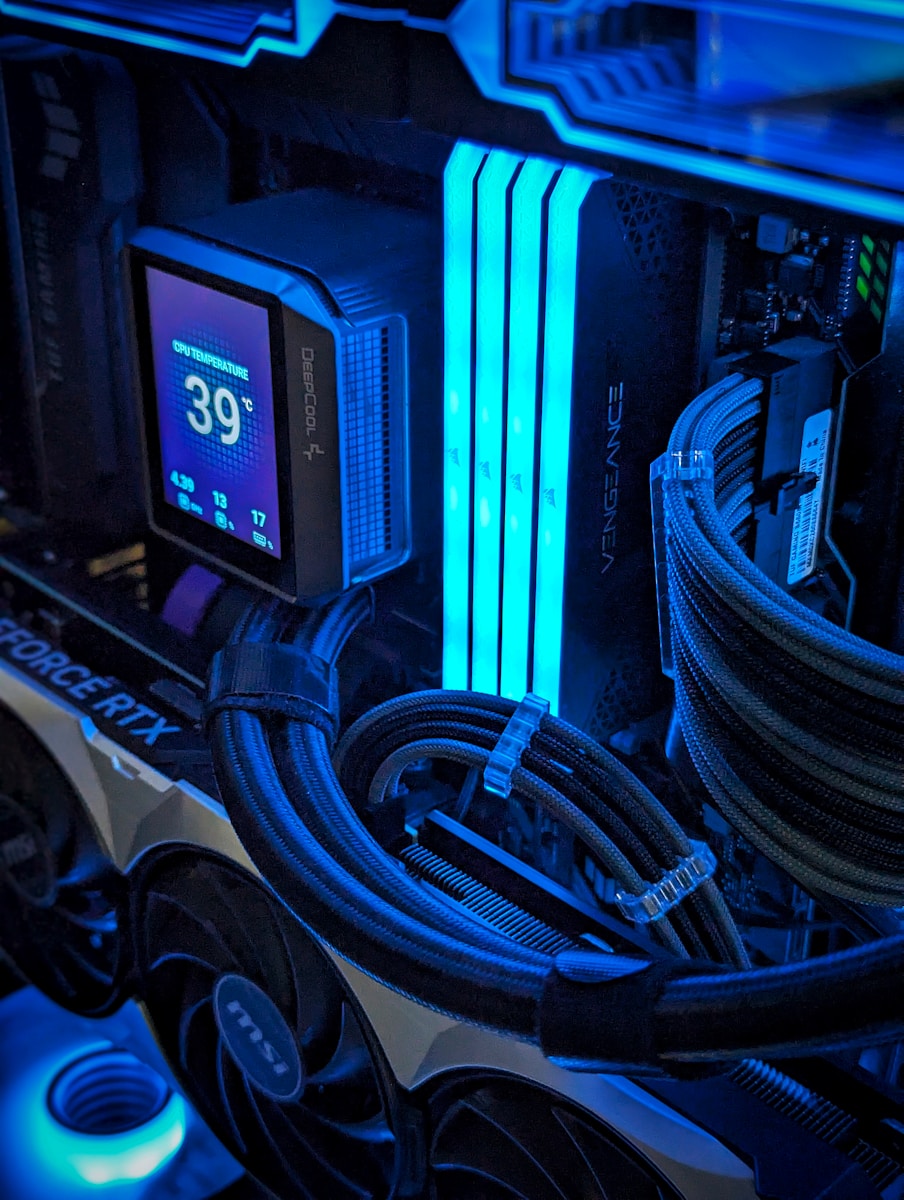
Overclocking a CPU can unlock extra performance from your system — sometimes for free. But it also comes with risks, added heat, and potential stability issues. Before you jump into BIOS settings and start raising clock speeds, there are some important things you should understand.
Here’s everything you need to know before overclocking a CPU in 2026.
What Is CPU Overclocking?
Overclocking is the process of increasing your processor’s clock speed beyond its factory-set specifications.
In simple terms:
- Higher clock speed = More performance
- More performance = More heat and power usage
Modern CPUs already use dynamic boost technology (like AMD Precision Boost or Intel Turbo Boost), which automatically increases speeds when needed. Manual overclocking pushes performance even further — but requires careful tuning.
Is Overclocking Worth It in 2026?
The answer depends on your CPU and use case.
✅ It May Be Worth It If:
- You’re gaming and want higher frame rates
- You run CPU-heavy tasks (rendering, compiling, encoding)
- You enjoy tweaking and benchmarking
- You have proper cooling and a capable motherboard
❌ It May Not Be Worth It If:
- You use a laptop (most aren’t designed for it)
- You already have a high-end CPU with aggressive boost behavior
- You prioritize system stability over small performance gains
Modern CPUs are smarter than ever. In many cases, auto-boost algorithms already squeeze out near-maximum safe performance.
Check If Your CPU Can Be Overclocked
Not all processors are unlocked.
AMD
Most Ryzen desktop CPUs are unlocked for overclocking (except some lower-end models). Look for:
- Ryzen “X” models
- Ryzen “X3D” models (though manual overclocking may be limited)
Intel
Look for a “K” or “KF” at the end of the model name (e.g., i7-14700K).
You’ll also need:
- A compatible motherboard chipset
- Updated BIOS
- Strong VRMs (power delivery system)
Cooling Is Critical
Overclocking increases heat output significantly.
Cooling Options:
- ✅ High-end air coolers
- ✅ 240mm+ AIO liquid coolers
- ✅ Custom water cooling (advanced users)
If your CPU regularly exceeds safe temperatures (usually above 90–95°C under load), you risk:
- Thermal throttling
- Instability
- Reduced lifespan
Rule of thumb: Upgrade cooling before overclocking.
Power Supply Matters
Overclocking increases power draw. Make sure your PSU:
- Has enough wattage headroom
- Is from a reputable brand
- Is at least 80+ Bronze (Gold preferred)
A weak PSU can cause crashes or system instability under load.
Understand the Risks
Overclocking is generally safe when done properly — but it’s not risk-free.
Potential Risks:
- System instability (crashes, blue screens)
- Higher temperatures
- Increased power consumption
- Reduced CPU lifespan (with excessive voltage)
- Voided warranty (in some cases)
Modern CPUs have safety mechanisms, but pushing voltage too high can cause long-term damage.
Key Terms You Should Know
Before entering BIOS, understand these basics:
- Base Clock (BCLK): The CPU’s foundational clock speed
- Multiplier: Determines final clock speed (Multiplier × Base Clock)
- Voltage (Vcore): Power supplied to the CPU
- Thermal Throttling: Automatic speed reduction due to heat
- Stress Testing: Running tools to verify stability
You’ll mainly adjust the multiplier and voltage when overclocking.
How to Overclock (High-Level Overview)
⚠️ This is a simplified overview. Always research your specific CPU model.
- Enter BIOS/UEFI.
- Increase CPU multiplier gradually.
- Adjust voltage slightly if unstable.
- Save and boot into the OS.
- Run stress tests (Cinebench, Prime95, AIDA64).
- Monitor temperatures (HWMonitor, Ryzen Master, etc.).
- Repeat until stable.
Never jump straight to extreme settings.
Stability Testing Is Essential
An overclock isn’t successful just because your PC boots.
You need to:
- Run stress tests for at least 30–60 minutes (longer for maximum certainty)
- Monitor temperatures constantly
- Watch for crashes or errors
If your system crashes:
- Reduce clock speed
- Lower voltage (if too high)
- Improve cooling
Stability is more important than squeezing out an extra 100 MHz.
What About XMP and EXPO?
Enabling XMP (Intel) or EXPO (AMD) for your RAM is technically memory overclocking — and it’s much safer and easier than CPU overclocking.
If you’re new, start there first. It often delivers noticeable performance gains with minimal risk.
Overclocking vs. Undervolting
In 2026, undervolting is becoming more popular.
Instead of increasing voltage for higher speeds, undervolting:
- Reduces heat
- Lowers power draw
- Maintains performance
For many modern CPUs, fine-tuning power limits and undervolting may offer better real-world gains than aggressive overclocking.
When You Shouldn’t Overclock
Avoid overclocking if:
- Your cooling is basic
- Your case airflow is poor
- Your PSU is near its limit
- You rely on 100% uptime for professional work
Stability should always come first in work environments.
Final Thoughts
Overclocking a CPU can be rewarding — but it requires preparation, patience, and proper hardware.
Before you start, make sure you:
- ✅ Have adequate cooling
- ✅ Understand voltage and temperature limits
- ✅ Use a capable motherboard
- ✅ Are willing to stress test thoroughly
In 2026, modern CPUs already deliver impressive performance out of the box. Overclocking can provide extra gains, but smart tuning and system balance matter more than ever.
If done correctly, overclocking can extend your CPU’s usefulness and boost performance — just don’t rush the process.
Take it slow, test carefully, and prioritize stability over bragging rights.