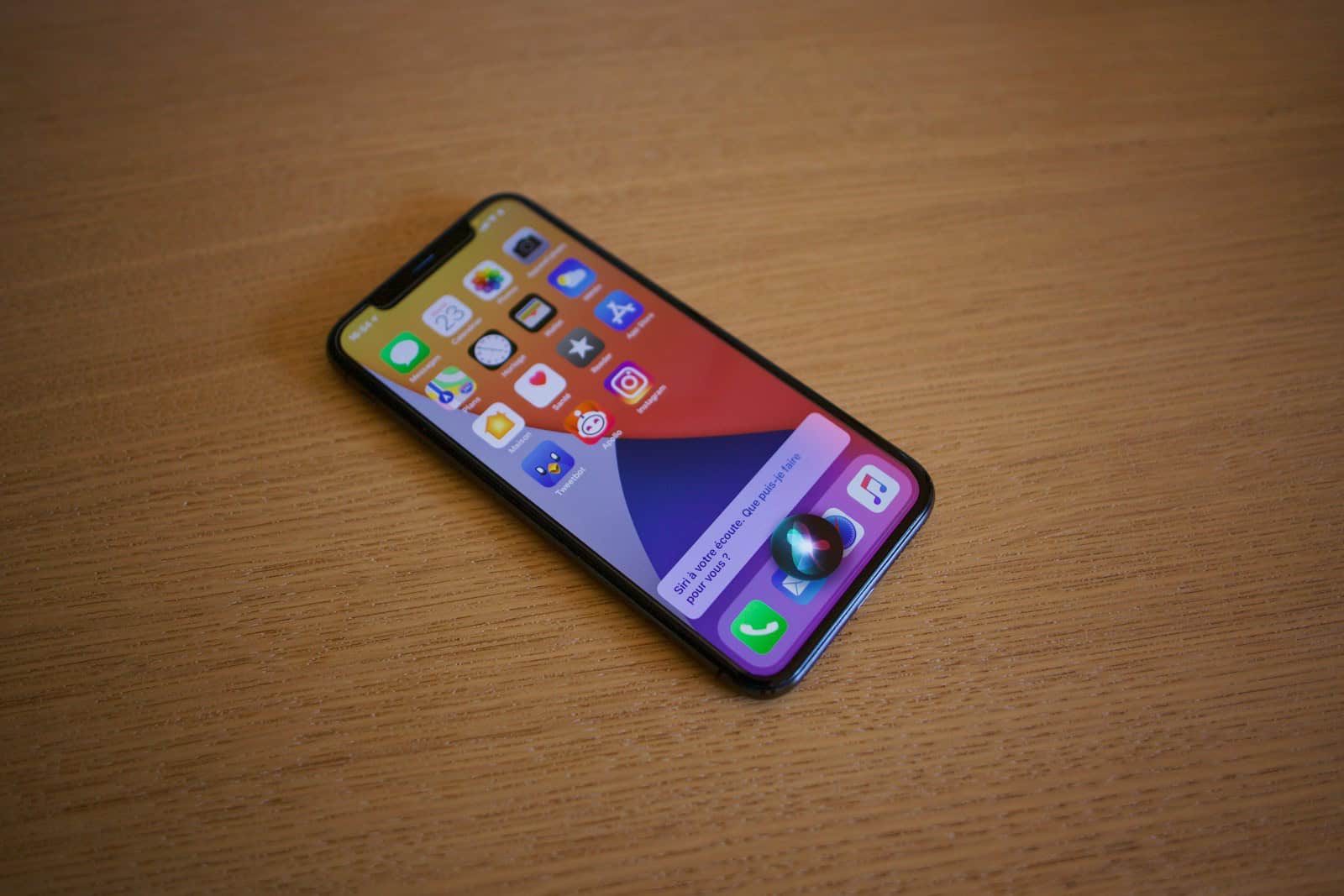
Low Power Mode on iPhone is a handy feature that helps extend battery life when you’re running low on juice. It works by temporarily reducing power consumption, limiting background processes, and adjusting display settings to conserve energy. This mode can be a lifesaver when you’re away from a charger and need your phone to last longer.
When activated, Low Power Mode dims the screen brightness and reduces some visual effects. It also pauses automatic downloads, email fetch, and background app refresh. These changes may slightly impact your iPhone’s performance, but they significantly prolong battery life.
You can easily turn on Low Power Mode in your iPhone’s settings or through the Control Center. It automatically turns off when your battery charges to 80% or higher. This feature is especially useful during long days out, travel, or emergencies when you need to maximize your phone’s battery life.
| Feature | Normal Mode | Low Power Mode |
|---|---|---|
| Screen Brightness | Full | Reduced |
| Background App Refresh | On | Off |
| Automatic Downloads | On | Paused |
| Mail Fetch | Active | Paused |
| 5G (if available) | On | Off |
What Does Low Power Mode on iPhone Do?
Low Power Mode is a built-in feature on iPhones designed to extend battery life when your battery is running low. When enabled, it temporarily reduces background activity and adjusts certain system settings to conserve power.
What Happens When You Turn On Low Power Mode?
When Low Power Mode is active, your iPhone makes several automatic changes:
1. Reduces Background Activity
- Background app refresh is limited
- Mail fetch is disabled (email updates only when you open the app)
- Automatic downloads and some iCloud syncing are paused
2. Lowers Performance
- CPU and GPU performance are slightly reduced
- Animations and visual effects are minimized
- Some tasks may take a bit longer to complete
This helps reduce power consumption, especially during heavy usage.
3. Adjusts Display Settings
- Screen brightness may be reduced
- Auto-Lock is set to 30 seconds
- ProMotion (on supported models) may drop to a lower refresh rate
4. Disables or Limits Certain Features
- 5G may be disabled or limited on newer iPhones
- Live Photos, background location updates, and some visual effects may be reduced
- Always-On Display (on supported models) is turned off
When Does Low Power Mode Turn Off?
Low Power Mode automatically turns off when your iPhone charges back up to 80% battery. You can also disable it manually at any time.
How to Turn On Low Power Mode
You can enable Low Power Mode in a few different ways:
Method 1: Settings
- Open Settings
- Tap Battery
- Toggle Low Power Mode on
Method 2: Control Center
- Open Control Center and tap the battery icon (if added)
Method 3: Siri
- Say: “Hey Siri, turn on Low Power Mode”
How to Know If Low Power Mode Is On
- The battery icon turns yellow in the status bar
- You’ll see a notification when it’s activated
Does Low Power Mode Damage Your iPhone?
No. Low Power Mode is safe and recommended by Apple. It doesn’t harm your battery or device—it simply optimizes how your iPhone uses power.
When Should You Use Low Power Mode?
Low Power Mode is especially useful when:
- Your battery is below 20%
- You won’t have access to a charger
- You want to extend battery life during travel
- You’re using an older iPhone with reduced battery health
Many users even keep it on most of the time to maximize battery longevity.
Final Thoughts
Low Power Mode is a simple but powerful way to extend your iPhone’s battery life. While it slightly reduces performance and background activity, it keeps your phone usable for longer when you need it most.
If battery life is a concern, enabling Low Power Mode can make a noticeable difference with just one tap.
Understanding Low Power Mode
Low Power Mode is a feature designed to extend your iPhone’s battery life when it’s running low. It reduces power consumption by limiting certain functions and background processes.
Purpose and benefits
Low Power Mode helps conserve battery life on your iPhone when you’re running low on power. It’s especially useful when you’re away from a charger and need your phone to last longer. This feature can significantly extend your battery’s lifespan by reducing energy consumption.
Benefits of Low Power Mode:
- Extends battery life by up to 3 hours
- Automatically turns off when battery reaches 80%
- Easily activated through Settings or Control Center
By using Low Power Mode, you can keep your iPhone running for crucial tasks when battery life is critical.
How Low Power Mode Affects iPhone Functionality
When you enable Low Power Mode, your iPhone adjusts several settings to reduce power usage. These changes may affect your device’s performance but help preserve battery life.
Key changes in Low Power Mode:
• Screen brightness dims
• Auto-lock shortens to 30 seconds
• Background app refresh pauses
• Visual effects reduce
• 5G connectivity disables (unless manually started)
| Feature | Normal Mode | Low Power Mode |
|---|---|---|
| Mail fetch | Active | Manual |
| Automatic downloads | Enabled | Disabled |
| iCloud sync | Active | Paused |
Your iPhone’s battery icon turns yellow to indicate Low Power Mode is active. These adjustments help your device use less power while still allowing essential functions.
Activating Low Power Mode
Low Power Mode helps extend your iPhone’s battery life. You can enable this feature through two convenient methods.
Via Settings App
To activate Low Power Mode in the Settings app:
- Open the Settings app on your iPhone
- Tap “Battery”
- Toggle the “Low Power Mode” switch to the on position
The battery icon in the top right corner will turn yellow when active. Your iPhone will prompt you to turn on Low Power Mode when the battery reaches 20% and 10%.
Low Power Mode automatically disables when you charge your iPhone to 80% or higher.
Using Control Center
For quicker access, add Low Power Mode to Control Center:
- Go to Settings > Control Center
- Tap “Customize Controls”
- Find “Low Power Mode” and tap the green plus icon
Now you can swipe down from the top-right corner (or up from the bottom on older iPhones) to open Control Center. Tap the battery icon to toggle Low Power Mode on or off.
This method allows you to enable the feature with just two taps from any screen.
| Method | Steps | Benefit |
|---|---|---|
| Settings App | 3 steps | Detailed battery info |
| Control Center | 2 taps | Quick access |
Low Power Mode on Different Devices
Low Power Mode works differently across iPhone and iPad models. It adjusts various settings to extend battery life while maintaining essential functions.
Low Power Mode on iPhone 12 and Later
On iPhone 12 and newer models, Low Power Mode offers enhanced power-saving features. It reduces screen brightness and lowers the display refresh rate to 60Hz on ProMotion displays.
The feature also limits 5G connectivity, switching to 4G/LTE to conserve energy. Background app refresh is paused, and automatic downloads are temporarily disabled.
You can activate Low Power Mode manually or set it to turn on automatically at a specific battery percentage. To enable it, go to Settings > Battery > Low Power Mode.
| Feature | Normal Mode | Low Power Mode |
|---|---|---|
| Screen Brightness | User-set | Reduced |
| Refresh Rate (Pro models) | Up to 120Hz | 60Hz |
| 5G Connectivity | Enabled | Disabled |
| Background App Refresh | Enabled | Disabled |
Low Power Mode on iPads
iPads also support Low Power Mode, though its implementation differs slightly from iPhones. On iPads, it reduces power consumption by lowering screen brightness and limiting background activities.
The feature is particularly useful for older iPad models with aging batteries. To activate Low Power Mode on your iPad, go to Settings > Battery and toggle the switch.
iPad Pro models with ProMotion displays will see their refresh rates capped at 60Hz in Low Power Mode. This helps conserve battery life while still providing a smooth user experience.
Unlike iPhones, iPads don’t show a yellow battery icon when Low Power Mode is active. Instead, you’ll see a low battery notification in the Control Center.
Technical Details and Optimization
Low power mode involves advanced techniques to reduce energy consumption. It adjusts various system components and settings to extend battery life while maintaining essential functionality.
Managing Display Settings
Display settings play a crucial role in power optimization. Low power mode reduces display brightness to conserve energy. It may also lower the refresh rate on devices with ProMotion displays.
ProMotion technology allows for dynamic refresh rates up to 120Hz. In low power mode, this rate can drop to 60Hz or lower. The reduced refresh rate decreases power consumption but may result in slightly less smooth scrolling.
Auto-Lock timers are often shortened in low power mode. This ensures the display turns off quickly when not in use, further preserving battery life.
Impact on Connectivity and Performance
Low power mode affects various connectivity features to save energy. It may disable 5G networks in favor of 4G LTE, which uses less power. Background app refresh is typically paused, reducing data usage and processing demands.
Performance impacts include:
- Reduced CPU clock speeds
- Limited background processes
- Delayed iCloud Photos syncing
These changes can slightly slow down your device but significantly extend battery life. The table below summarizes key performance trade-offs:
| Feature | Normal Mode | Low Power Mode |
|---|---|---|
| CPU Speed | Full | Reduced |
| Background Refresh | Active | Limited |
| iCloud Sync | Continuous | Delayed |
| 5G | Enabled | Disabled |
You can customize some of these settings to balance performance and power savings based on your needs.
Frequently Asked Questions
Low Power Mode on iPhones and iPads offers battery-saving benefits. Users often have questions about its usage and impacts. Let’s address some common concerns.
Is it advisable to use Low Power Mode on an iPhone continuously?
Using Low Power Mode continuously is not recommended. It limits certain features to save power. This can affect your device’s performance and functionality. Use it when needed to extend battery life in critical situations.
Can Low Power Mode affect the long-term health of my iPhone’s battery?
Low Power Mode doesn’t harm your iPhone’s battery health. It actually helps by reducing strain on the battery. This can potentially extend its lifespan. Use it when necessary without worrying about long-term effects.
How can I enable Low Power Mode on an iPhone to activate automatically?
You can’t set Low Power Mode to activate automatically. You must turn it on manually each time. Go to Settings > Battery or use Control Center for quick access. Your iPhone will suggest enabling it at 20% battery.
What changes occur when Low Power Mode is activated on an iPad?
When you activate Low Power Mode on an iPad, it reduces power consumption. The screen dims. Background app refresh stops. Mail fetch is paused. Visual effects are minimized. These changes help extend your iPad’s battery life.
What are the potential drawbacks of using Low Power Mode on an iPhone?
Low Power Mode can slow down your iPhone. It reduces performance to save battery. Some features like 5G may be disabled. Background updates stop. Emails don’t fetch automatically. These limitations can affect your user experience.
How is battery health impacted by frequently using Low Power Mode?
Frequent use of Low Power Mode doesn’t negatively impact battery health. It can actually help preserve battery life. By reducing power consumption, it puts less strain on the battery. This might contribute to maintaining battery health over time.
| Feature | Normal Mode | Low Power Mode |
|---|---|---|
| Performance | Full | Reduced |
| Screen Brightness | Normal | Dimmed |
| 5G | Enabled | Disabled |
| Background App Refresh | On | Off |
| Auto-Lock | User-defined | 30 seconds |
| Mail Fetch | Normal | Paused |
| Visual Effects | Full | Reduced |