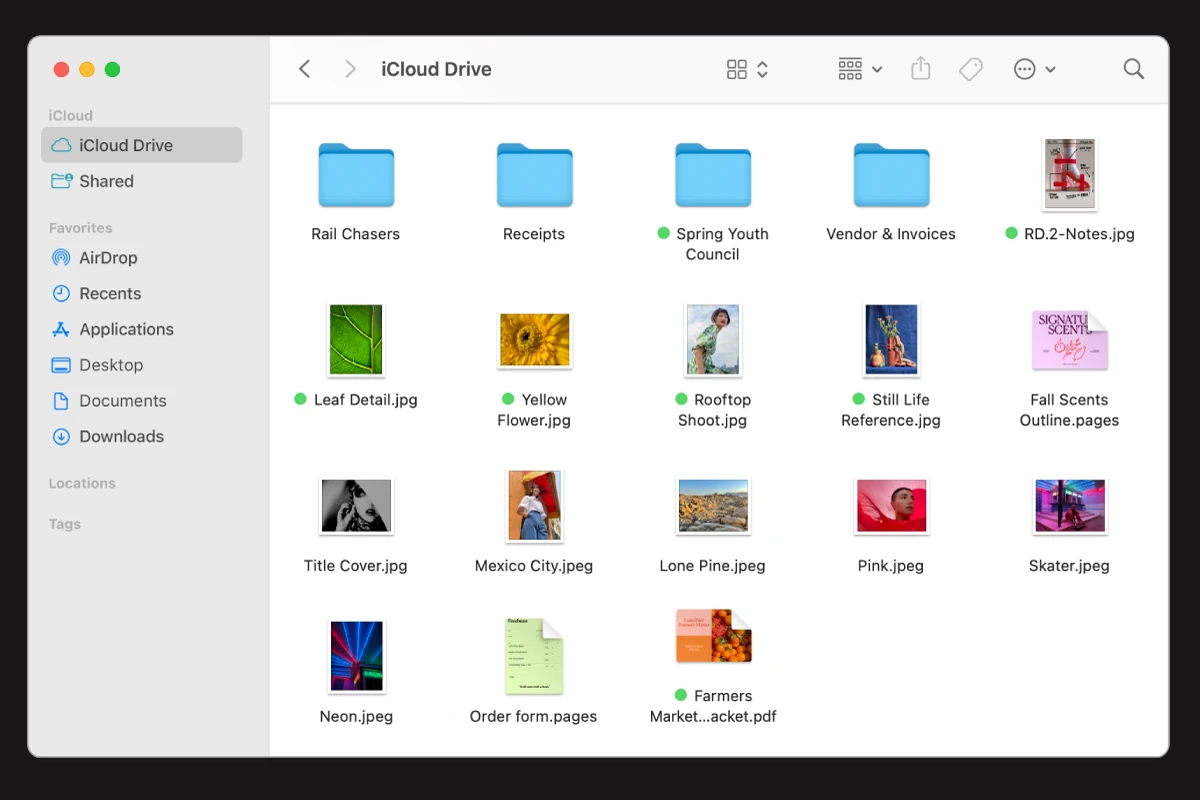
Zipping files on your Mac is a quick and easy way to save space and organize your data. You can compress files and folders with just a few clicks using your Mac’s built-in tools. This simple process helps reduce file sizes for easier sharing and storage.
Macs offer multiple methods to zip files. The most common approach uses the Finder app. You can also create password-protected zip files for added security. These options give you flexibility in managing your compressed files.
Zipping is useful for backing up documents, sending large files, or freeing up disk space. Let’s explore how to zip files on your Mac efficiently.
| Zip Method | Pros | Cons |
|---|---|---|
| Finder | Easy, built-in | Basic features |
| Terminal | More control | Requires commands |
| Third-party | Advanced options | Extra software needed |
How to Zip a File on Mac
Zipping a file or folder on a Mac is a quick way to reduce its size or bundle multiple items together for easy sharing. macOS has built‑in tools that make this simple—no extra software required.
Method 1: Zip a File or Folder Using Finder (Easiest)
This is the most common and straightforward method.
- Open Finder
Locate the file or folder you want to zip. - Right‑click (or Control‑click) the item
A context menu will appear. - Select “Compress”
- If it’s a file: Click Compress “filename”
- If it’s a folder: Click Compress “folder name”
- Find the zipped file
A new.zipfile will appear in the same location as the original item.
✅ Done! Your file is now zipped and ready to share or store.
Method 2: Zip Multiple Files or Folders at Once
You can zip several items together into one ZIP file.
- Hold down the Command (⌘) key.
- Click each file or folder you want to include.
- Right‑click on any selected item.
- Choose Compress X Items.
macOS will create a single file named Archive.zip containing all selected items.
Method 3: Zip Files Using Terminal (Advanced)
For more control, you can use the Terminal app.
- Open Terminal (Finder → Applications → Utilities → Terminal).
- Navigate to the folder containing your file:
cd /path/to/your/files - Use the
zipcommand:zip archive.zip filenameOr for a folder:zip -r archive.zip foldername
The -r flag means “recursive,” which is required for folders.
How to Unzip a File on Mac
To unzip a file:
- Double‑click the
.zipfile
or - Right‑click it and select Open
macOS will automatically extract the contents into the same folder.
Tips & Notes
- Zipping does not delete the original file.
- ZIP files preserve folder structure.
- File size reduction depends on file type (text files compress better than images or videos).
Understanding File Compression on MacOS
File compression on MacOS helps save storage space and simplifies file sharing. The built-in tools make it easy to create and open compressed archives.
The Basics of Zip and Archive Formats
MacOS supports several archive formats, but ZIP is the most common. ZIP files can contain multiple files and folders in a single compressed package. This format maintains folder structures and file attributes.
Other supported formats include:
- RAR
- 7z
- TAR
- GZIP
ZIP files offer good compression ratios and wide compatibility across different operating systems. They’re ideal for sending email attachments or uploading files to cloud storage.
To compress a file on MacOS, simply right-click it and select “Compress”. The system creates a new ZIP archive with the same name as the original file.
MacOS Built-in Archive Utility and Finder App
MacOS includes two main tools for working with compressed files: Archive Utility and Finder.
Archive Utility runs in the background. It handles file compression and extraction automatically when you:
- Double-click a ZIP file
- Use the “Compress” option in Finder
Finder offers a user-friendly interface for zipping files and folders. To compress multiple items:
- Select the files/folders in Finder
- Right-click and choose “Compress”
- A new ZIP archive appears in the same location
You can also drag files onto an existing ZIP archive in Finder to add them. This feature makes it easy to update compressed files without recreating the entire archive.
How to Zip Files Using Finder
Zipping files on Mac is a simple process using the built-in Finder application. You can quickly compress single or multiple files into a compact .zip archive.
Creating a Zip File with Right-Click or Control-Click
To zip files using Finder, locate the items you want to compress. Right-click or Control-click on the selected files or folders. From the context menu, choose “Compress [item name]” or “Compress [number] Items” if you’ve selected multiple items.
Finder will create a new .zip file in the same location as your original files. The compressed file will have the same name as the original item or “Archive.zip” for multiple items.
This method works for single files, multiple files, and entire folders. The zipped file takes up less space and is easier to share or transfer.
Zip Files with a Predefined ‘.zip Extension’
You can also create zip files by adding the .zip extension to a folder name. Start by making a new folder in Finder. Name it with your desired archive name followed by .zip (e.g., “MyDocuments.zip”).
Drag the files you want to compress into this newly created folder. macOS automatically compresses the contents into a zip archive. This method is useful when you need to create multiple zip files quickly.
| Method | Steps | Pros | Cons |
|---|---|---|---|
| Right-click | Select files, right-click, choose “Compress” | Quick, intuitive | Limited to default naming |
| .zip extension | Create .zip folder, drag files in | Custom naming, batch creation | Requires manual folder creation |
Both methods create standard zip archives compatible with most systems.
Advanced Zipping Techniques on MacOS
MacOS offers powerful tools for compressing files beyond the basic right-click method. These advanced techniques give you more control over file compression and help optimize storage space.
Using Terminal to Compress and Archive Files
The Terminal provides flexible options for zipping files on Mac. To create a zip archive, open Terminal and navigate to the folder containing your files. Use the “zip” command followed by the archive name and files to compress:
zip archive.zip file1.txt file2.jpg
For more complex archives, try these commands:
- Compress an entire folder:
zip -r archive.zip foldername - Exclude certain file types:
zip -r archive.zip folder -x "*.jpg" - Create a password-protected zip:
zip -e archive.zip file1.txt file2.jpg
The “tar” command offers an alternative for creating compressed archives:
tar -czvf archive.tar.gz folder
This creates a gzipped tar archive, which often results in smaller file sizes for certain types of data.
Third-Party Compression Tools and Their Advantages
While MacOS has built-in zipping capabilities, third-party tools offer additional features. The Unarchiver supports a wide range of archive formats, including RAR files. It’s free and integrates seamlessly with Finder.
BetterZip provides advanced compression options:
| Feature | Benefit |
|---|---|
| Preview archives | View contents without extracting |
| Smart archives | Auto-update when source files change |
| Encryption | Secure sensitive data |
These tools often compress files more efficiently than the default Mac utility. They also support splitting large archives into smaller parts, which is useful for sending via email or storing on limited-capacity drives.
How to Unzip and Extract Files on MacOS
MacOS offers simple methods to unzip and extract files. You can quickly access compressed content using built-in tools or manage extracted archives efficiently.
Unzipping Files With Archive Utility
To unzip files on your Mac, double-click the .zip file. This action automatically opens Archive Utility and extracts the contents to the same folder as the zip file.
For more control, right-click (or Control-click) the zip file and select “Open With” > “Archive Utility”. This method allows you to choose where to save the extracted files.
You can also use Terminal to unzip files:
- Open Terminal
- Type “cd” followed by the path to your zip file
- Enter “unzip filename.zip”
Managing Extracted Archives and Folders
After extracting files, you’ll need to manage them effectively. Create a dedicated folder for extracted contents to keep your files organized. You can do this by:
- Right-clicking in Finder
- Selecting “New Folder”
- Naming it appropriately
Move extracted files into this folder using drag-and-drop or the “Move to” option in Finder’s File menu.
To save space, delete the original zip file after confirming all contents are extracted correctly. Right-click the zip file and select “Move to Trash”.
| Action | Method |
|---|---|
| Quick unzip | Double-click zip file |
| Custom unzip | Right-click > Open With > Archive Utility |
| Terminal unzip | Use “unzip” command in Terminal |
| Organize files | Create dedicated folder for extracted contents |
| Save space | Delete original zip file after extraction |
Frequently Asked Questions
Zipping files on Mac can be done through various methods, including the built-in tools and Terminal commands. Let’s address some common questions about compressing files on macOS.
How can I compress a PDF into a ZIP file using macOS?
To zip a PDF on Mac, locate the file in Finder. Right-click on the PDF and select “Compress”. Your Mac will create a ZIP file with the same name as your PDF. This method works for any file type, not just PDFs.
What are the steps to zip a folder using Terminal on macOS?
Open Terminal and navigate to the folder’s location using the “cd” command. Type “zip -r archive.zip foldername” and press Enter. Replace “archive” with your desired ZIP file name and “foldername” with the folder you want to compress.
What is the Mac command line instruction for creating a ZIP file?
The basic command is “zip filename.zip file1 file2 file3”. Replace “filename” with your desired ZIP name and list the files you want to include. For folders, use “zip -r” as mentioned in the previous answer.
Why am I encountering issues with expanding ZIP files on macOS?
ZIP file expansion problems often occur due to incomplete downloads or file corruption. Try repairing the ZIP file using Terminal commands. If issues persist, download the file again or ask the sender to re-zip and resend it.
How can I email a ZIP file from a Mac?
Open your email client and create a new message. Click the attachment icon or drag and drop the ZIP file into the email body. Most email services support ZIP attachments up to certain size limits.
What alternatives are there to WinZip for zipping files on macOS?
Mac’s built-in Archive Utility handles basic zipping needs. For more features, consider apps like The Unarchiver, Keka, or BetterZip. These offer advanced compression options and support for various archive formats.
| Feature | Archive Utility | The Unarchiver | Keka | BetterZip |
|---|---|---|---|---|
| Free | Yes | Yes | Paid | Paid |
| Formats | ZIP, RAR | Many | Many | Many |
| Encryption | No | Yes | Yes | Yes |
| Integration | Built-in | Separate app | Separate app | Separate app |